 Words in Reach
Watch Studio
Studio, step by step.
Pick a tab to see a task in the editor. Play a silent GIF or move through the screens at your own pace.
Profile
Set up a communicator
Name a new workspace so you can recognize whose board you are editing.
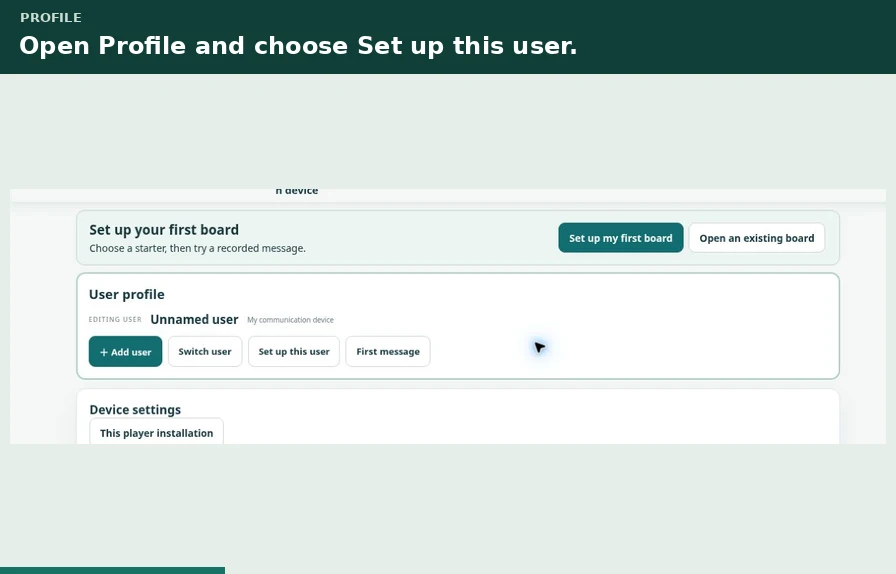
Open Profile and choose Set up this user.
Read the steps
- Open Profile and choose Set up this user.
- Choose the communicator and device details.
- Enter Robin as the communicator in this example.
- Studio now identifies the active draft as Robin’s.
Access
Try switch scanning
See where to choose a switch method and how the highlight appears in the access test.
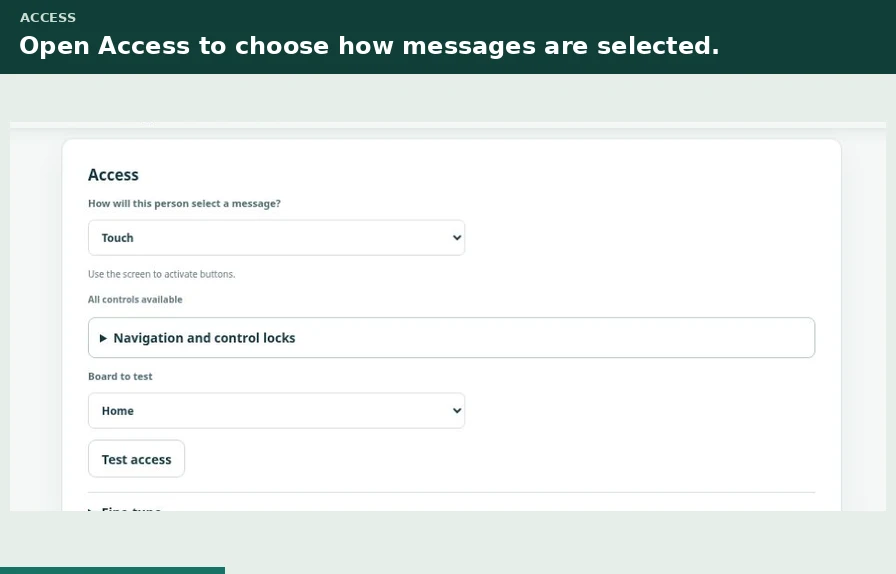
Open Access to choose how messages are selected.
Read the steps
- Open Access to choose how messages are selected.
- Choose Switch Scanning and One-Switch Auto-Scanning.
- Open the access test to try a practice board.
- Start scanning and watch the highlight on the board.
Communication board
Edit two buttons and print a level
Follow Yes and No from their original colors to the lavender pair on the paper board.
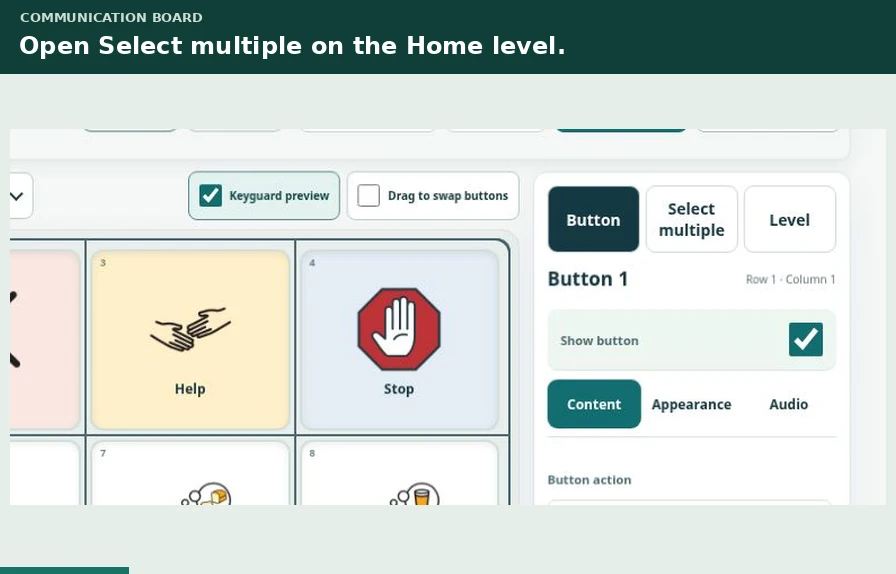
Open Select multiple on the Home level.
Read the steps
- Open Select multiple on the Home level.
- Select Yes.
- Add No. Both buttons are checked.
- Choose lavender, then apply to selected buttons.
- Yes and No now share a color. Choose Print boards.
- Choose Current level, then Print / Save PDF.
- The PDF keeps both lavender buttons and all twelve positions.
Activities
Schedule a morning routine
Start with a template, open its step cards, and choose a weekday reminder.
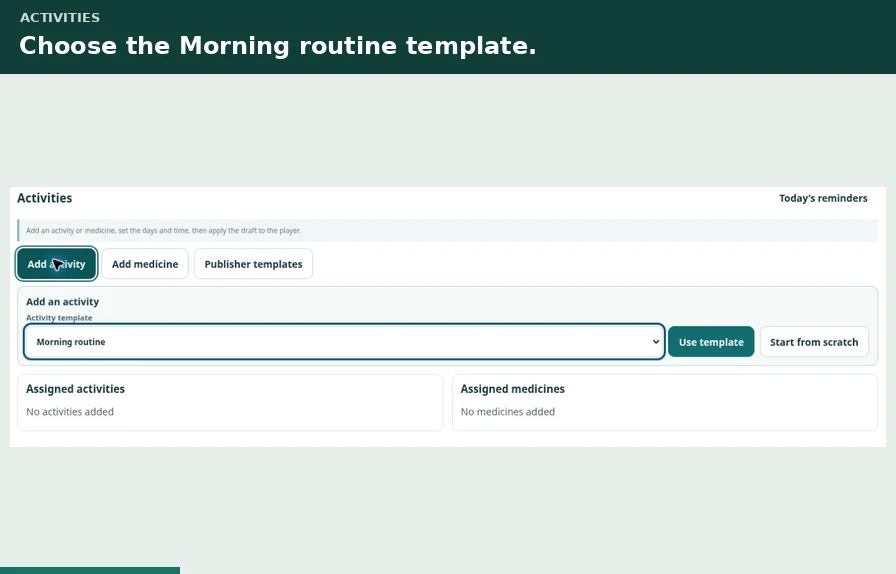
Choose the Morning routine template.
Read the steps
- Choose the Morning routine template.
- Open the new routine and its reminder card.
- Review the four steps in the routine.
- Add a weekly reminder time.
- Choose weekdays and set the time to 8:00 AM.
Games & Practice
Choose a learning game
Find the AAC learning games and preview the introduction to Builder’s Waterworks.
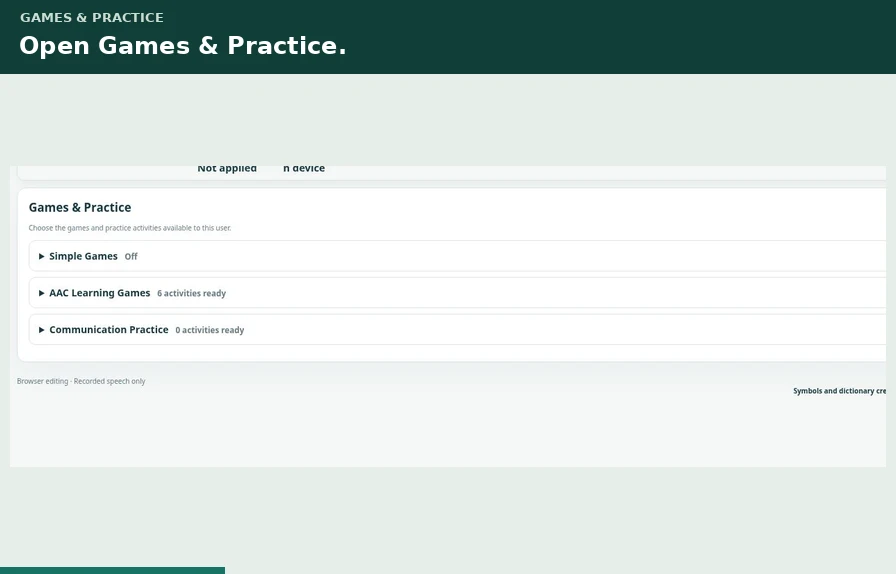
Open Games & Practice.
Read the steps
- Open Games & Practice.
- Expand AAC Learning Games.
- Open Preview introductions and choose Builder’s Waterworks.
- Read the game introduction before starting.
Reports & feedback
Find activity records
Choose a communicator, filter to Activities, and set a date range. This example uses an empty practice account.
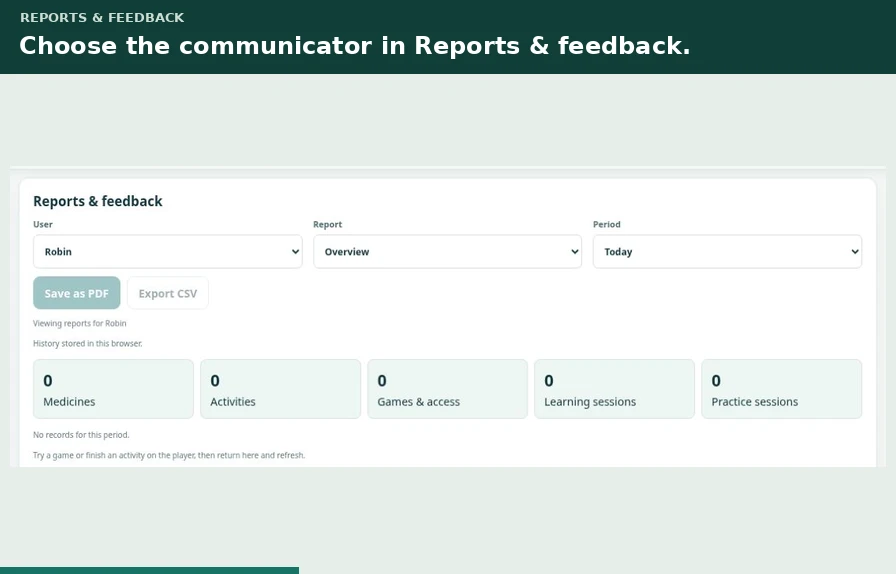
Choose the communicator in Reports & feedback.
Read the steps
- Choose the communicator in Reports & feedback.
- Filter the report to Activities.
- Choose Custom dates to reveal the From and To fields.
Studio and board languages
Change the editor and board languages
Follow the editor language at the top and the labels on the same four board buttons underneath.
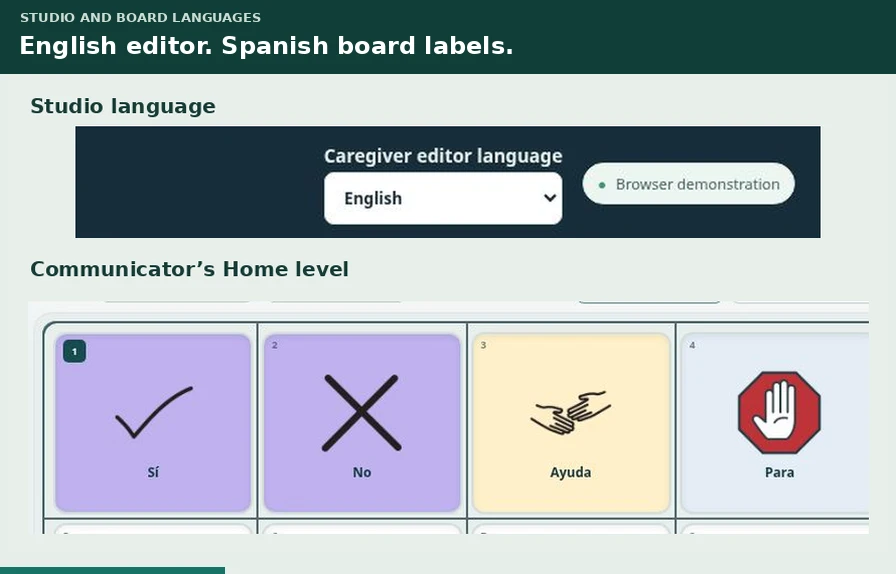
English editor. Spanish board labels.
Read the steps
- English editor. Spanish board labels.
- Switch the editor to Spanish. The board still says Sí and Ayuda.
- In the board language settings, choose English.
- The board now says Yes and Help. The editor stays in Spanish.