 Words in Reach
How can we help?
Find the steps for the task in front of you, or contact support.
Start using Studio
Activate a trial or redeem a code
Open your account in the browser you plan to use. Accept the software use rules, activate your trial or redeem your code, then register the browser. A Studio license supports a caseload. A Select personal player license covers one communicator.
Visit the trial pageStart a communicator profile
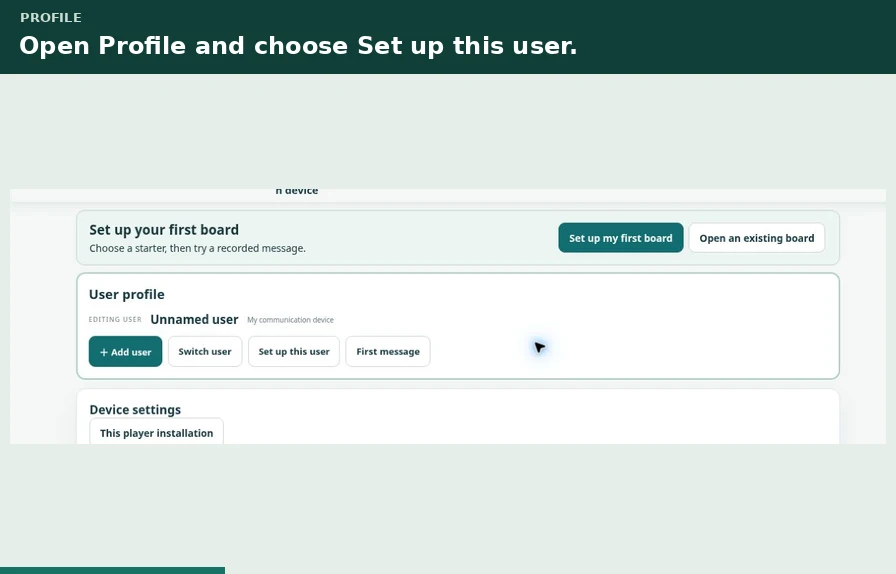
Open Profile, choose Set up this user, and enter the communicator and device details. Check the name shown above the tabs before making changes.
See the Profile guidePersonalize a board
Replace a recorded message
In Studio, select a level and button. Choose Record, speak after the countdown, press Stop, then Listen. Pressing Record again replaces the current clip. Apply to Studio preview, confirm, and choose Preview as communicator to hear the applied board. Returning from Studio preview brings you back to the selected button when it is still available.
Explore the board editorChange a group of buttons and print
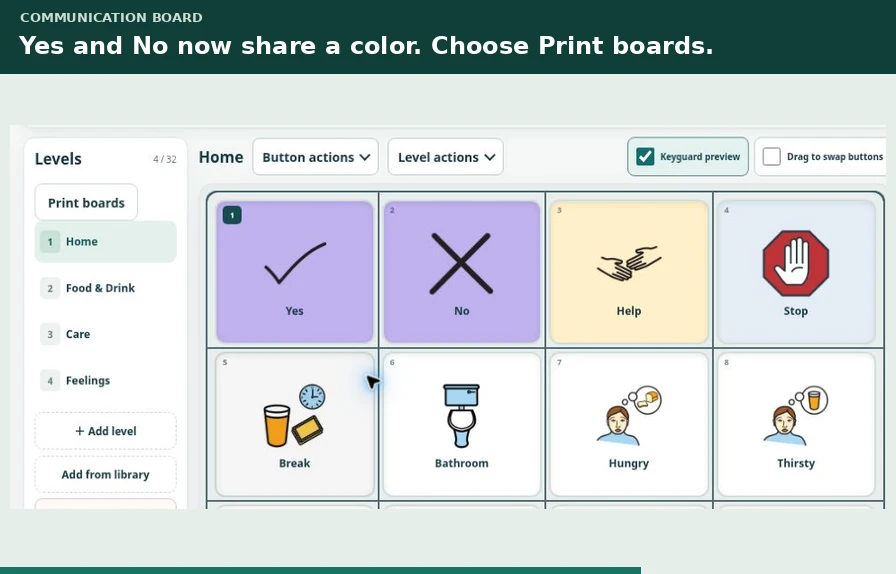
Open Select multiple, choose the buttons, and enable Change background color. Choose a color and Apply to selected buttons. Use Print boards, choose Current level, then Print / Save PDF.
Watch the edit and open the sample PDFUse different editor and board languages
The caregiver editor language controls the menus. Use the profile’s board-language settings to change the communicator’s labels, then review the words on the board. Check recordings separately.
See both language changesAccess and daily routines
Check a switch before using the player
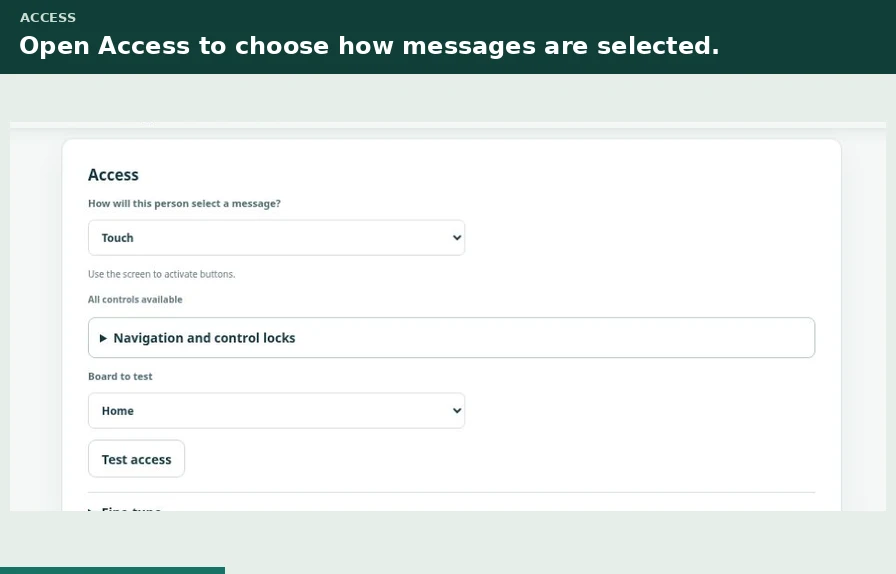
Open Access in Studio and choose the input method for the communicator. Try the access test, then apply and check the actual board and an activity with the intended switch hardware.
See the access testSet up an activity or medicine reminder
In Activities, start with a template for a routine or choose Add medicine for a caregiver-entered reminder. Review the steps or details, repeat days, and time before applying.
Watch a weekday routine take shapeChoose a game or communication practice
Open Games & Practice. Expand AAC Learning Games to review the choices and preview an introduction. The communication practice section includes Practice Saying It.
Try Builder’s WaterworksKeep and review your work
Save a backup before moving browsers
In the editor, open Backups and choose Download backup. Keep the file in a location you control. Restore from backup replaces this workspace’s saved users, draft, and applied board. For transferring one board to another clinician, use the single-project sharing tools.
Read about your dataRestore a workspace on a new browser
Download a current workspace backup first. In Your account, review the registered browser before confirming a replacement. On the new browser, open the editor and restore your backup.
Review how workspace storage worksFind an activity report
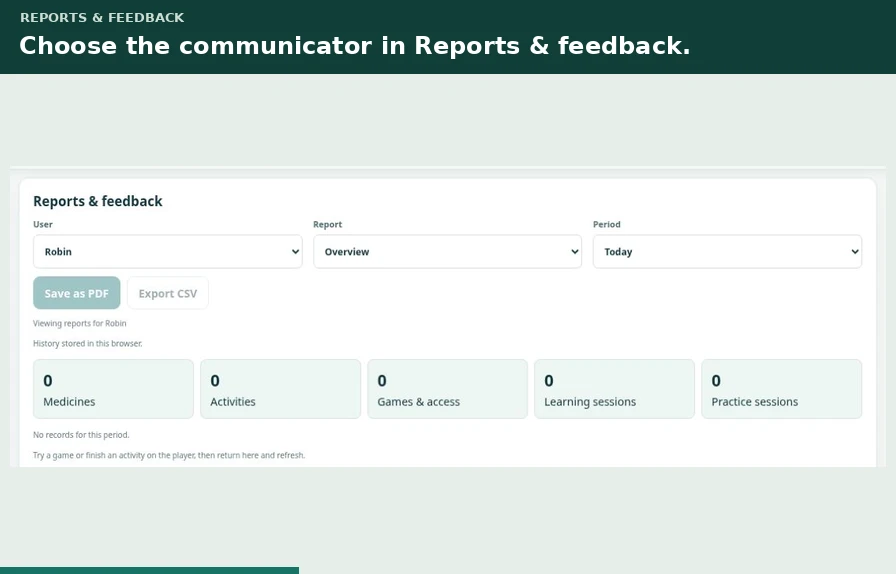
In Reports & feedback, check the communicator, choose Activities, and set a time period. For Custom dates enter both From and To. An empty date range or a practice profile with no activity can show zero records.
Watch the report filtersAccounts and sharing
Find your trial or purchase
Use the same email you used to request or buy access. Your account lists current software, pending invitations, and orders. A trial invitation starts the trial when activated. For an earlier manually issued code, check the expiration you received from the publisher.
Share templates
Approved contributors can send fictional board layouts, activities, and communication practice materials for publisher review. Use artwork and recordings you have permission to share.
Contact support
Include the product, browser, and the step where you got stuck. Leave out patient names, recordings, board files, and license codes.